Mastering GPT Image 1.5: The Ultimate Guide to OpenAI's Sora Generative Studio
A comprehensive guide to GPT Image 1.5, covering advanced prompting techniques, iterative workflows, structured data prompting, and exclusive Sora features for professional AI image generation.
The 2026 release of GPT Image 1.5 marks a fundamental shift in how we create visuals. Unlike legacy models like DALL-E 3, which functioned as a "wrapper" between a language model and a diffusion model, GPT Image 1.5 is natively multimodal. It treats text and pixels as the same type of information—tokens—processed within a single neural entity.
Whether you are accessing it via the API or the new creative hub at sora.chatgpt.com, the rules for getting professional-grade results have changed. This guide breaks down the new prompting architecture, iterative workflows, and structured data techniques used by top-tier operators.
1. The Foundational Prompt Stack
In 2026, "vibe-based" prompting is dead. Professional output requires a Constraint Stack—a logical hierarchy of directives that ensures the model doesn't have to "guess" and fill in the gaps with AI slop.
The Order of Operations
For GPT Image 1.5, prompt order directly influences importance. Use the following sequence for every prompt:
- Background/Scene: Set the environment and lighting first.
- Subject: Define the main focus, appearance, and action.
- Key Details: Add textures, materials, and camera specs.
- Constraints: List explicit exclusions (the "Negative Prompt" equivalent).
Expert Tip: For complex requests, don't write long paragraphs. Use labeled segments or line breaks to prevent "concept bleeding" (e.g., Scene: [details] | Subject: [details]), a technique highlighted in the official OpenAI prompting guide.
 A visual representation of the prompt stack order: Scene -> Subject -> Details -> Constraints
2. Specificity Over Buzzwords
The model's native multimodality means it understands photography language better than generic quality terms. Avoid words like "8K," "Ultra-HD," or "masterpiece." Instead, give the camera a job.
| Instead of... | Use Professional Terms... | Why? |
|---|---|---|
| "Highly detailed" | visible skin pores, weathered fabric weave, micro-contrast | Forces physical texture rendering. |
| "Cinematic" | Rembrandt lighting, f/1.8 aperture, 35mm lens feel | Controls light fall-off and depth. |
| "Realistic" | Shot like 1970s documentary photography, natural film grain | Breaks the "AI polish" look. |
3. Play Around and Find Out: The Iterative Workflow
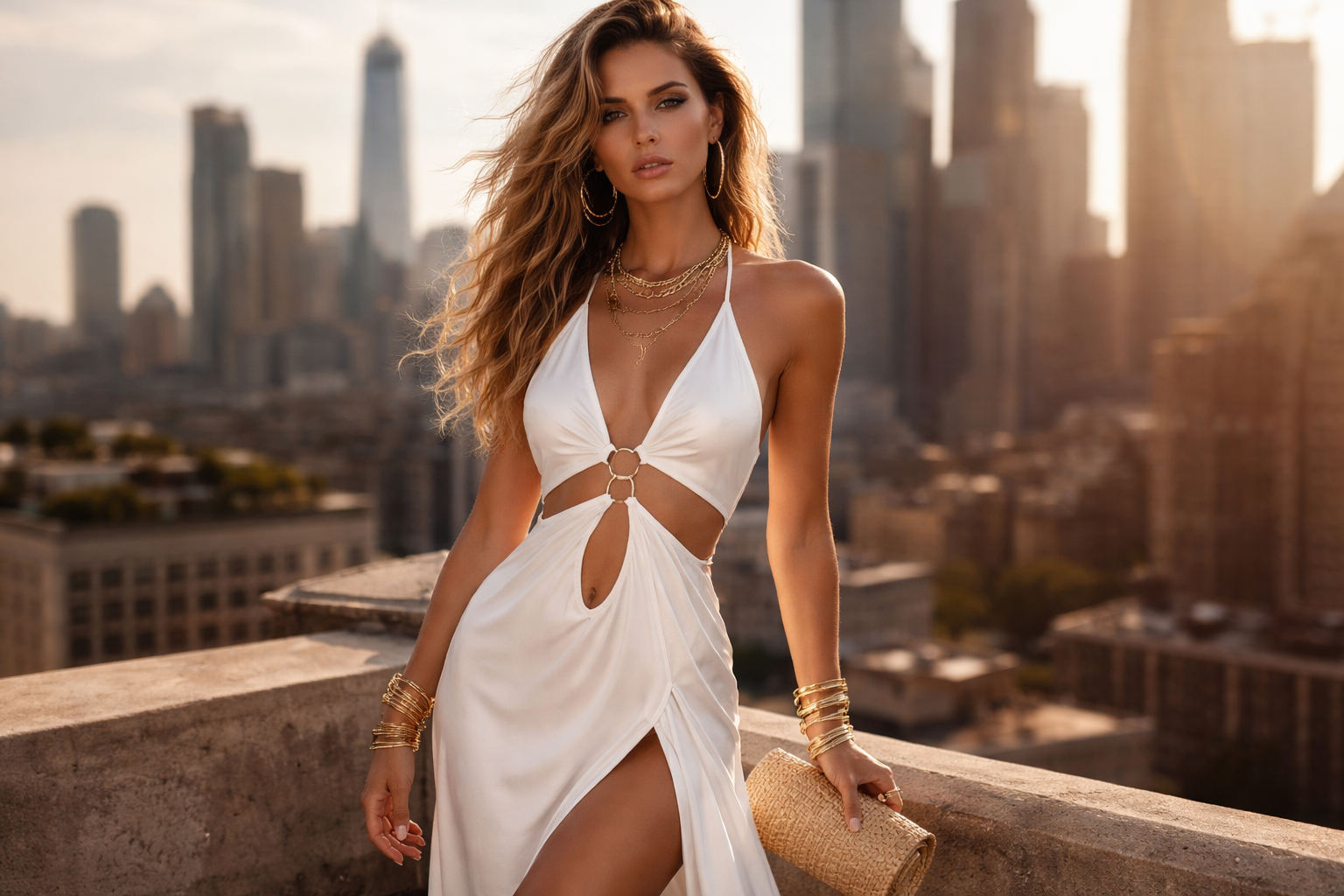
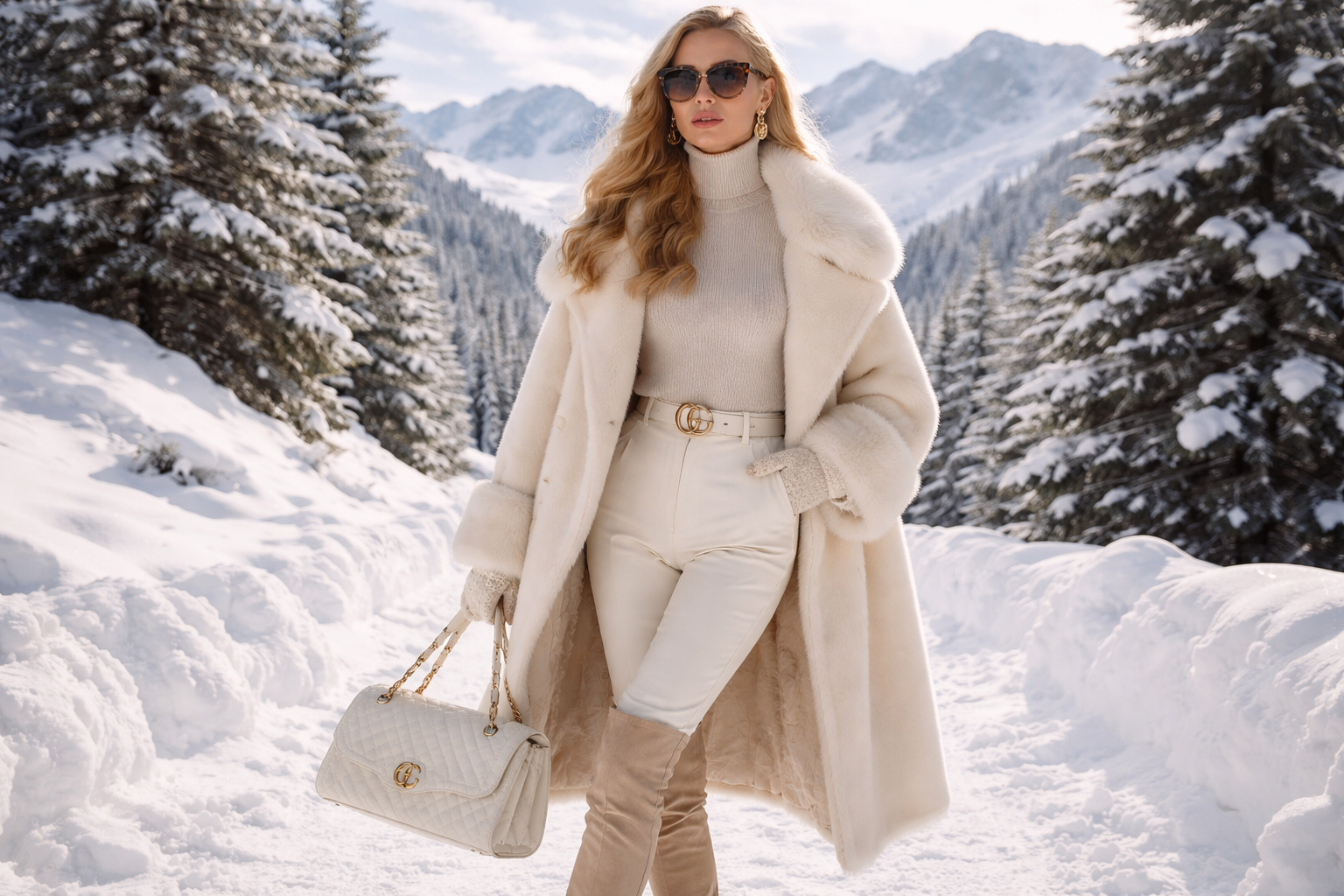
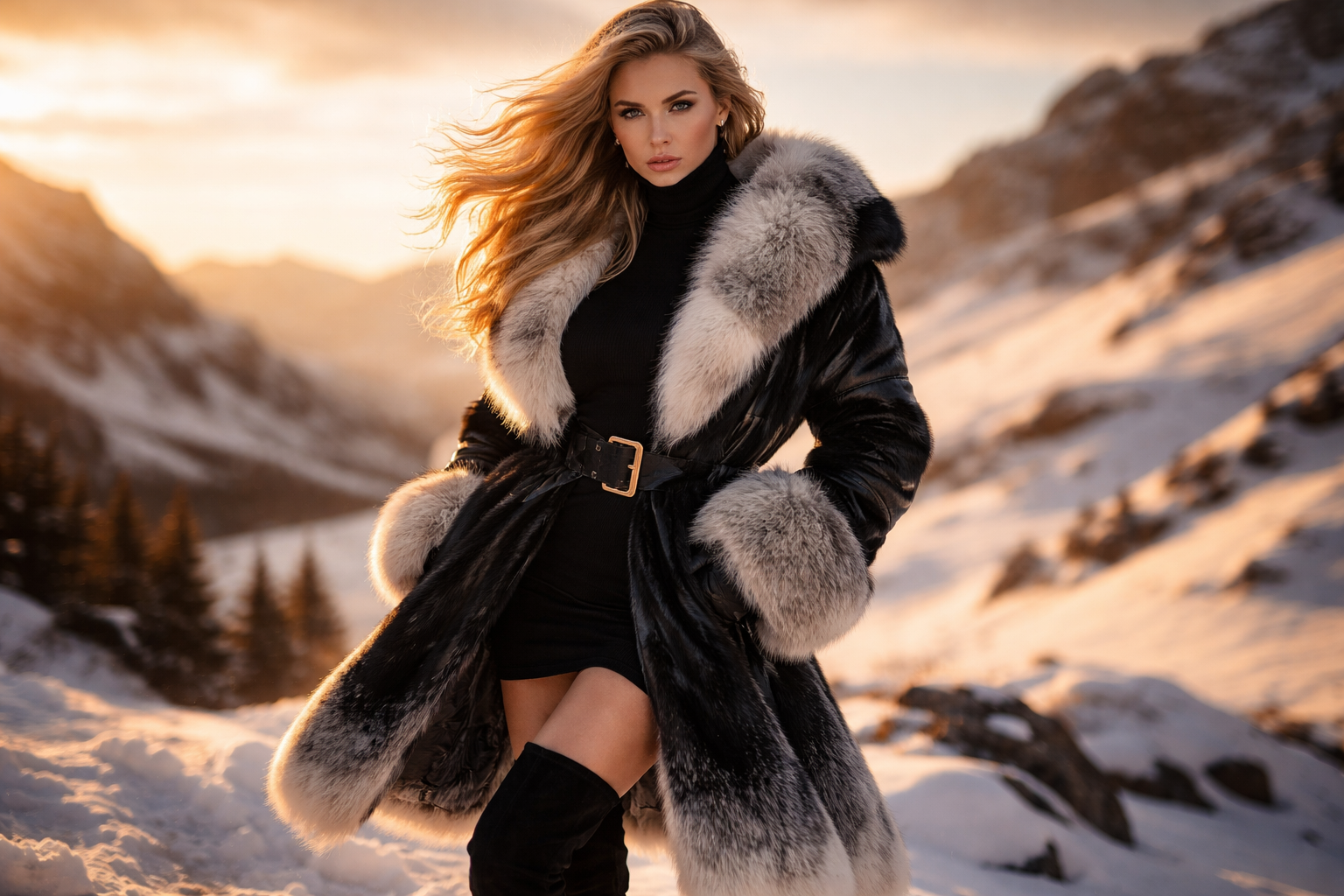
GPT Image 1.5 is 4x faster than its predecessor, making it a "sketchpad" for ideas. Don't try to get the perfect image in one go. Follow the fofr.ai methodology: start with a seed and evolve it.
From Seed to Sophistication
-
Initial: "A fashion photo."
-
Refined: "A high-end fashion photo, winter shoot, outdoors."
-
Final: "A high-end fashion photo, winter shoot, outdoors, daring and brave, 85mm lens, golden hour lighting."
The "Keep Everything Else" Edit:
One of the most powerful features of the Sora interface is the ability to make precision edits. Instead of re-rolling, you can upload an image and say: "Change only the color of the hat to light blue velvet. Do not change her face, lighting, or background."
4. Advanced Structured Prompting with JSON
LLMs are predictive engines. A paragraph of text is a sequence where the model might "forget" the middle. As explored in the fofr.ai prompting guide, structured data forces the model to treat every key-value pair as a distinct constraint, hitting significantly higher precision than prose.
A Professional JSON Template
{
  "subject": {
    "identity": "Woman in her early 30s, sharp features, intense gaze",
    "attire": "Oversized charcoal wool coat, silk scarf",
    "pose": "Walking toward camera, mid-stride"
  },
  "environment": {
    "setting": "Rainy Tokyo street at night",
    "lighting": "Neon pink and teal reflections on wet asphalt",
    "atmosphere": "Moody, misty, high contrast"
  },
  "photography": {
    "lens": "35mm prime",
    "aperture": "f/1.4",
    "film_stock": "Fujifilm Superia (grainy, warm tones)"
  },
  "constraints": {
    "avoid": ["yellow tint", "unnatural skin", "blurry face"],
    "must_keep": ["correct object counts", "legible text"]
  }
}
Why JSON Works Better: Traditional prose prompts leave room for interpretation. When you write "a woman in a coat on a rainy street," the model might prioritize the coat over the atmosphere. JSON forces every element to be equally important, creating more predictable and professional results.
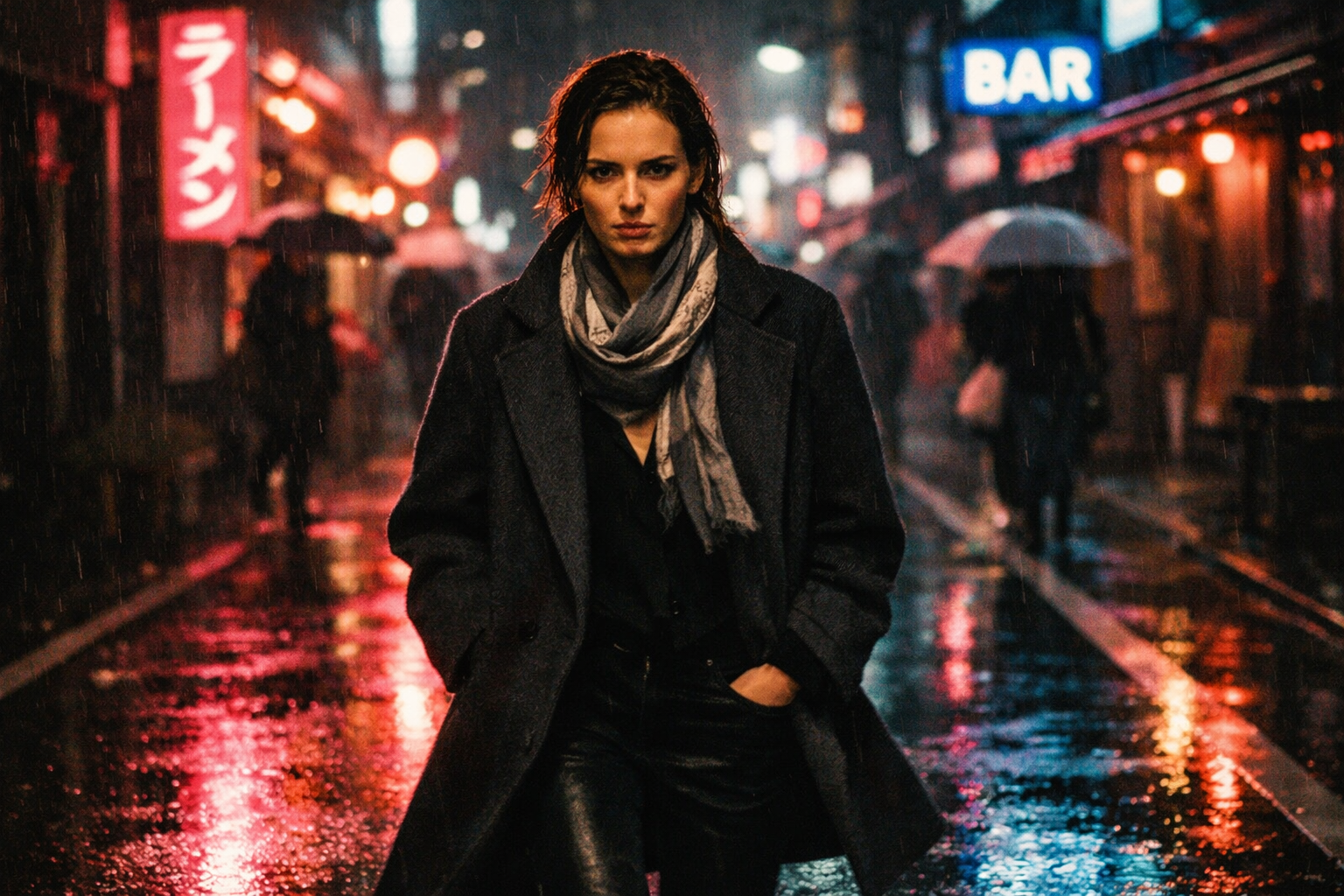 Example result from the JSON prompt above: A professional fashion photograph with precise control over lighting, attire, and atmosphere
This structured approach eliminates the ambiguity of prose prompts, where the model might interpret "moody" as "dark" instead of "atmospheric." With JSON, every constraint is explicit and weighted equally.
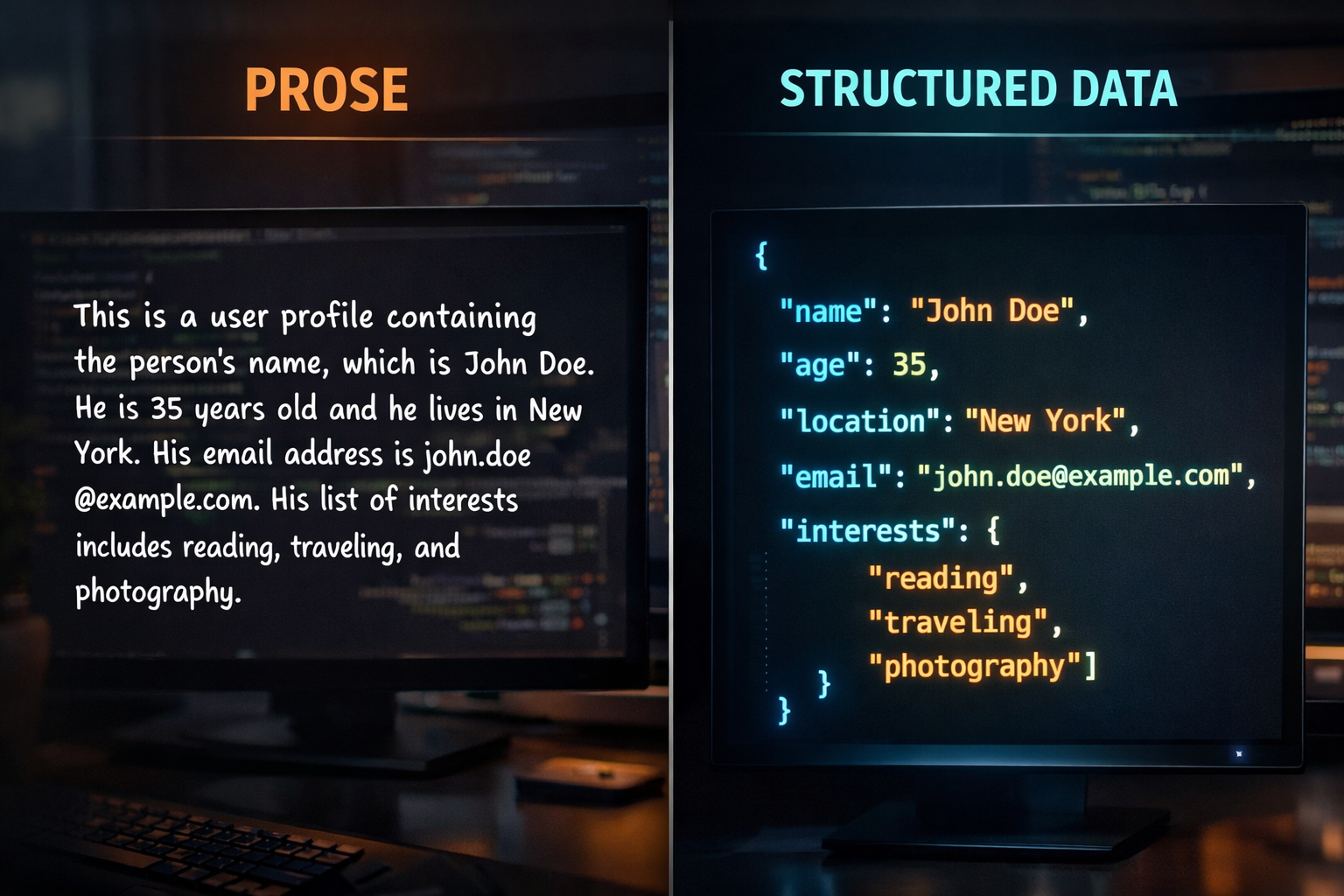 A comparison showing how structured JSON prompting provides clearer constraints compared to traditional prose prompts
5. Sora Exclusive Features: Storyboards & Character IDs
The interface at Sora, often called the Creative Studio, includes tools that go beyond basic image generation.
- Character IDs (Cameos): You can now upload a video or photo of yourself to create a reusable character. Once assigned an ID, you can @mention that character into any scene (e.g., @CharacterID in a steampunk laboratory) to maintain 100% identity consistency.
- Storyboards: This tool allows you to plan scenes sequence-by-sequence using keyframe images.
- Extensions: Seamlessly continue a visual narrative. If you like an image, you can "Extend" it to see what happens next in the scene while preserving every detail.
6. Mastering Text in Images
GPT Image 1.5 is the current leader in text rendering, achieving approximately 9.5/10 accuracy in independent tests. To ensure perfect spelling:
- Put literal text in "QUOTES" or ALL CAPS.
- Specify typography details: "Bold sans-serif, high contrast, centered."
- For difficult words, spell them out letter-by-letter in your prompt.
Even with all these advanced techniques for generating high-quality images with GPT Image 1.5, there's one persistent issue that many users encounter: the yellow tint that can make your creations look less professional.
Overcoming the Yellow Tint: Professional Color Correction
Even with the reasoning power of GPT Image 1.5, many users notice a persistent artifact: the "Yellow/Sepia Tint." This bias is a byproduct of the model's training on "warm and cozy" aesthetic data, which often results in muddy yellows and inaccurate white balance, especially in photorealistic indoor scenes.
For casual users, this looks "cinematic." For professionals, it ruins the authority of the image.
The Professional Fix: UnYellowGPT.com
UnYellowGPT.com is a specialized AI color-correction engine built specifically to neutralize the warm bias of OpenAI models.
- Intelligence: It restores true whites and natural skin tones with 98% accuracy in under 2 seconds.
- Efficiency: You can batch-correct up to 10 images at once—no manual white-balancing or Photoshop required.
- Pay-As-You-Go: No annoying subscriptions; just professional color science when you need it.
Don't let your AI assets look like "AI slop." Generate with GPT Image 1.5 for the logic, then finish at UnYellowGPT for the professional polish.