Free Image Comparison Slider
Drop in two images and drag the divider to see exactly what changed between them. Useful for before and after edits, upscales, and retouching.
Before
The original, or the left side of the slider.After
The edited version, or the right side.Try it before you upload anything
Drag the divider. This is the same slider your own two images get dropped into.

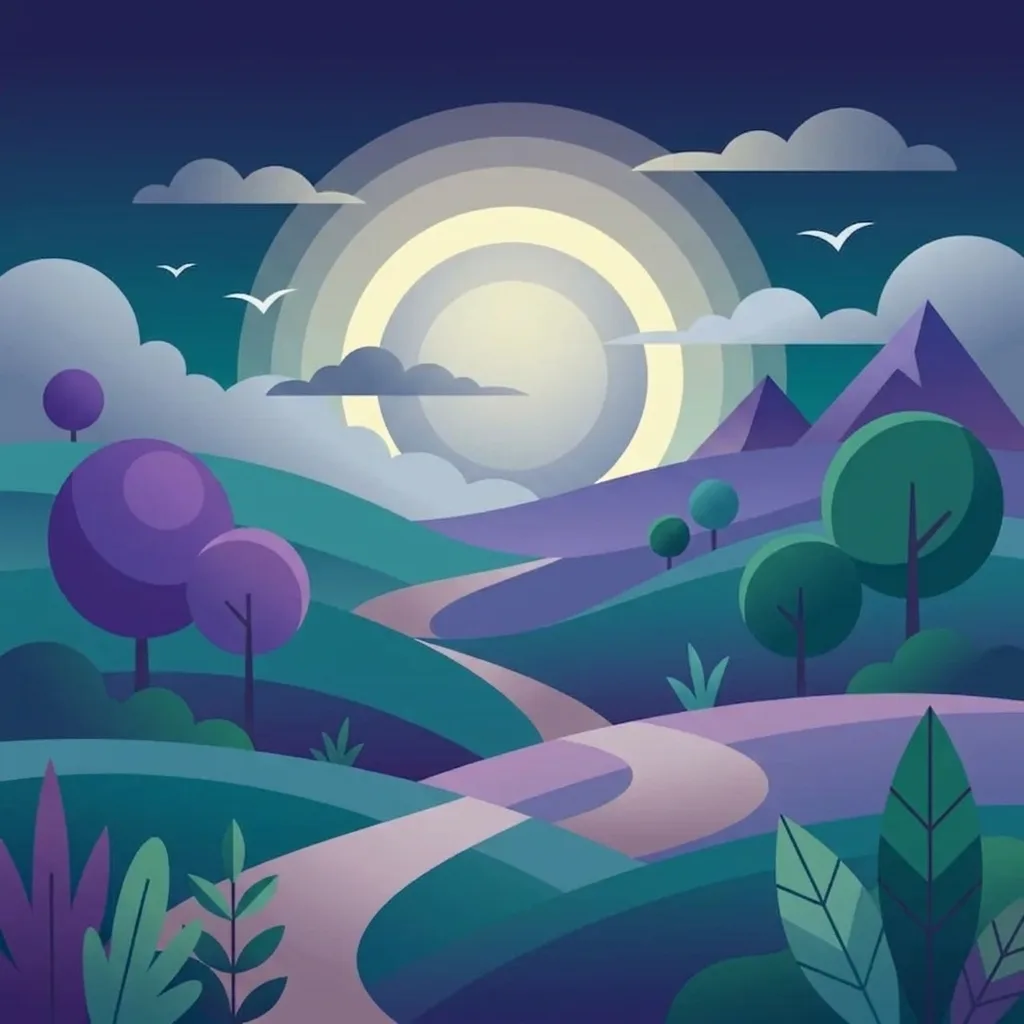
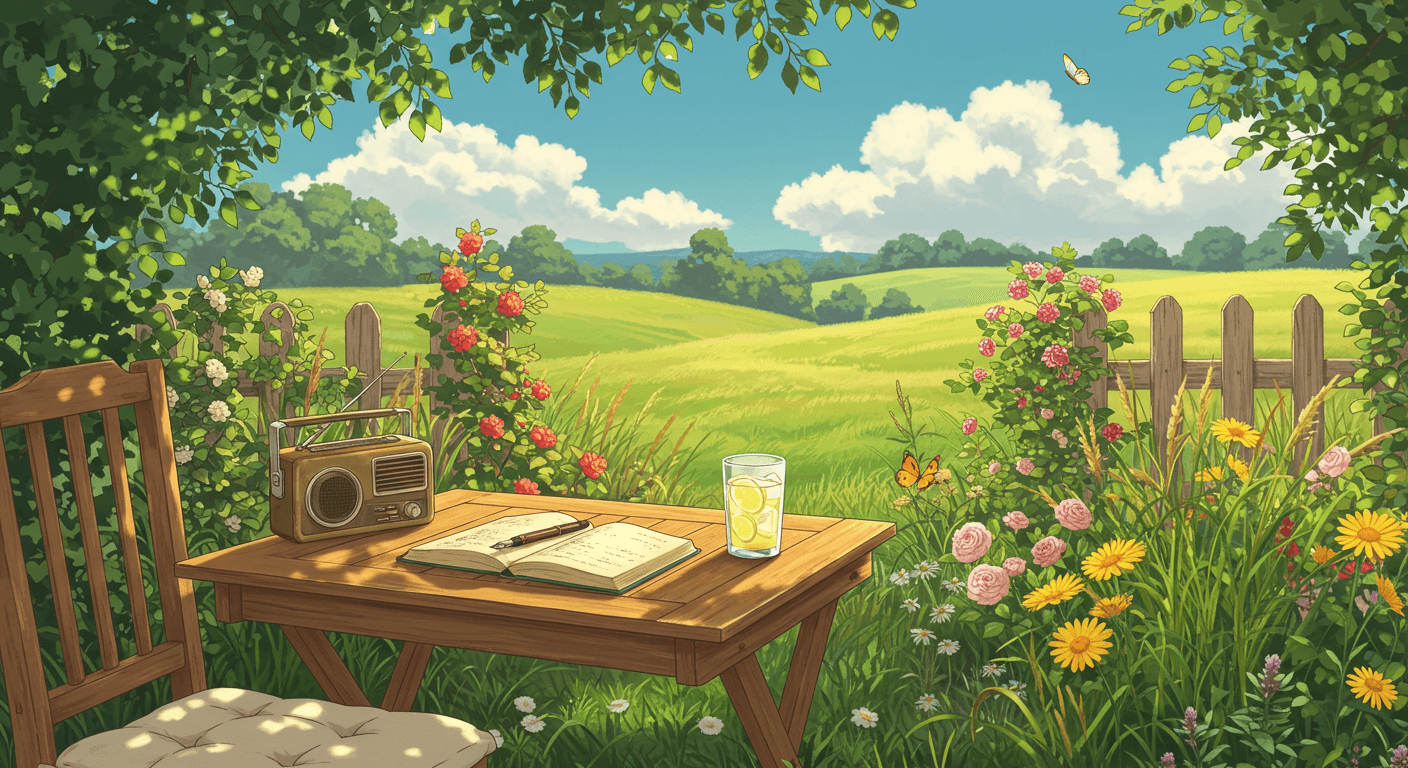
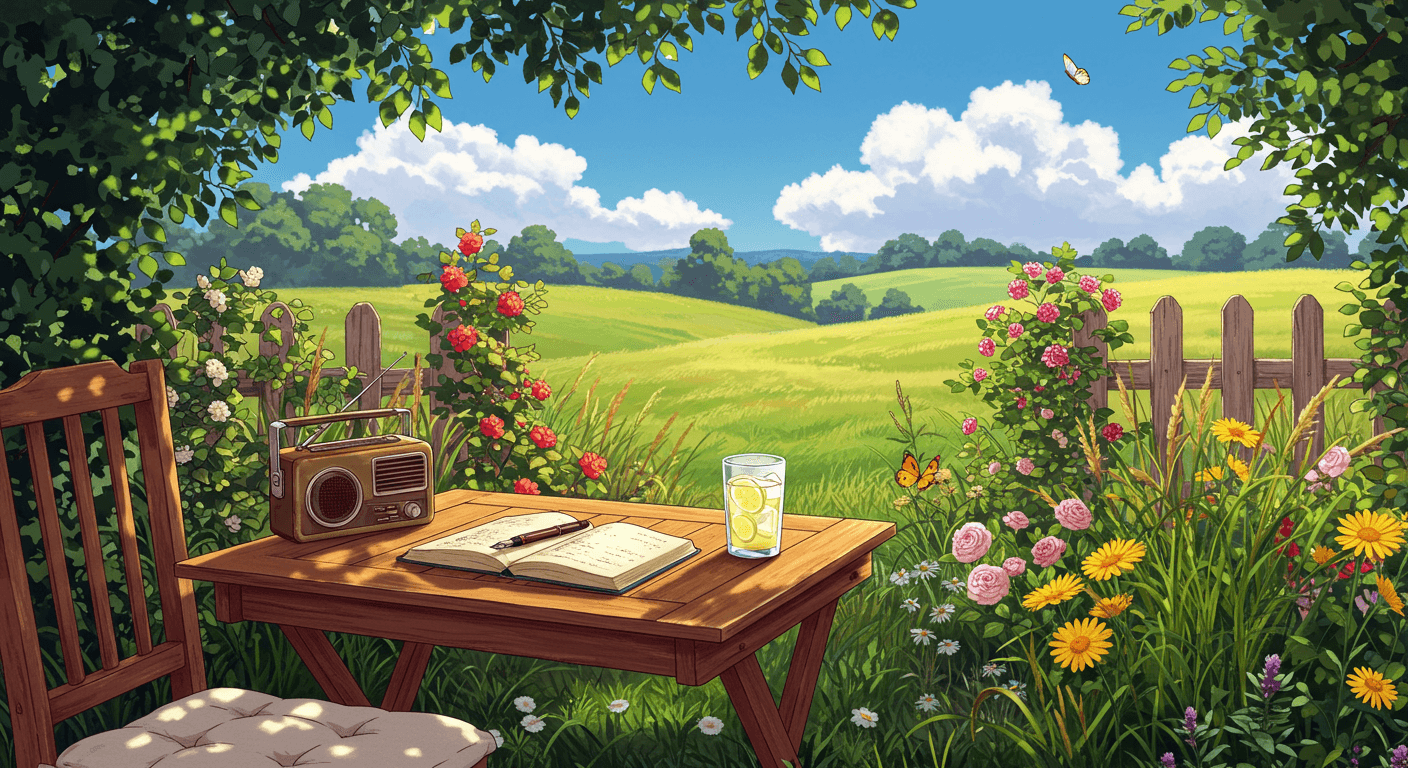
These are two unrelated pictures rather than one edit, which makes the wipe easy to see. The tool takes any two images, so a subtle before and after works exactly the same way.
Why a slider beats side by side
Two images placed next to each other force the eye to travel, and small differences get lost in the trip. Color shifts are the worst case: a warm cast is obvious the moment it is replaced by a neutral one in the same spot, and nearly invisible when the comparison sits an inch away.
A slider keeps both versions in the same position, so the change happens where you are already looking. That makes it the right tool for subtle, global edits: tint and white balance, exposure, denoising, upscaling, and skin retouching.
It is also the quickest way to check that an edit did only what it claimed. Drop in the original and the output from an image editor, for example, and you can confirm that the change stayed where you expected.
Fix the yellow tint while you are here
- One-click yellow tint removal
- Fix up to 10 images at once
- Results in under 2 seconds
- 3 free credits on signup
Frequently asked questions
- Do the two images need to be the same size?
- They do not, but the comparison is most useful when they are. The slider uses one frame for both, so if the dimensions differ the second image is scaled to fit and the two halves will not line up pixel for pixel. The tool tells you when it spots a mismatch.
- Which file types can I use?
- JPG, PNG, WEBP, and AVIF, up to 10 MB each.
- Can I save or share the comparison?
- Not as a single file. Because everything stays in your browser there is nothing to link to, so use your operating system screen recorder or a screenshot if you need to send the comparison to someone.
- What is this useful for?
- Any edit where the change is easy to lose in a static side-by-side: color grading and tint correction, retouching, upscaling, denoising, background removal, or comparing two versions of an AI-generated image.