Free Image Compressor
Make an image smaller without it looking smaller. Drag the quality slider and watch the file size fall next to a full-size preview, so you can see exactly what you are trading away.
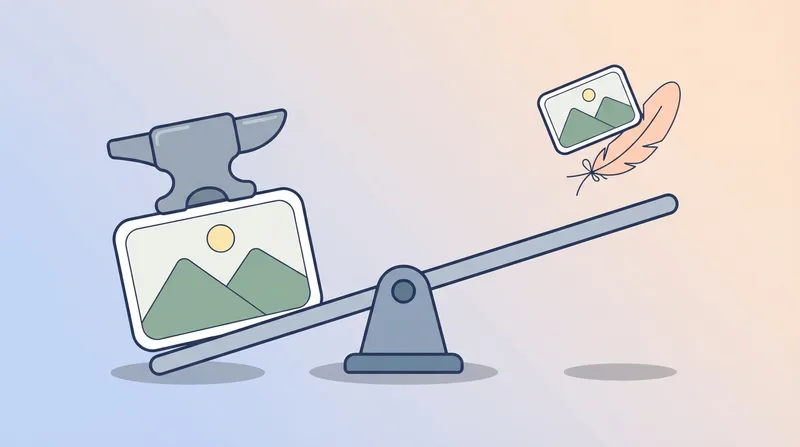
Where the bytes actually go
Lossy compression works by throwing away the detail your eye is worst at noticing. Fine gradations of color go first, because human vision resolves brightness far more sharply than hue, which is why a photo can lose three quarters of its file size before anything looks wrong.
That is also why the last few percent are expensive. Dropping from 100 to 90 usually costs nothing visible and saves a great deal; dropping from 50 to 40 saves little and starts to show as mottling in skies and halos around hard edges. Screenshots, logos, and anything containing text hit that point much earlier than photographs do.
If the image is also larger than it needs to be on screen, resizing beats compressing every time. Halving the width and height removes three quarters of the pixels before a single one is compressed, so our Image Resizer is often the better first stop.
Compressing is not converting
This tool keeps a lossy file in the format it arrived in, so a JPG stays a JPG and a WEBP stays a WEBP, and only lowers the quality setting. That is what you want when something has to stay a JPG for a form, a printer, or an old piece of software.
Changing format is often the bigger win, though. The same photo saved as WEBP is typically 25 to 35 percent smaller than the JPG at matching quality, and AVIF smaller still. The Image Converter handles that, with the same live size readout.
Fix the yellow tint while you are here
- One-click yellow tint removal
- Fix up to 10 images at once
- Results in under 2 seconds
- 3 free credits on signup
Frequently asked questions
- How much can I compress without it showing?
- Around 80 percent, the default here, is the usual sweet spot for photographs: files often land at a fifth of their original size with nothing visible at normal viewing distance. Watch the preview as you drag rather than trusting a number, and back off if you see mottling in skies or blocky edges around text.
- Why did my PNG come back as a JPG?
- PNG is a lossless format, so a quality setting has nothing to act on: re-saving a PNG at "80 percent" produces exactly the same pixels and roughly the same size. Compressing it means moving to a lossy format, so PNG, HEIC, and AVIF inputs come back as JPG. If you need to keep transparency, convert to WEBP instead.
- Is my image uploaded anywhere?
- No. The file is decoded and re-encoded in your browser, so it never leaves your device and there is no server to upload it to.
- Can I compress the same file twice?
- You can, but avoid it. Every lossy save discards detail permanently, and the losses stack: compressing an already-compressed JPG at 80 percent is not the same as compressing the original at 64 percent, it is worse. Always start from the best copy you have.